Badge Printing and Design
Design badge templates for your event, create per-tier designs for VIP and speaker badges, print all badges before your event, or print automatically on each check-in. Supports standard printers and USB Zebra thermal printers.
Badge Printing Overview
CompleteEvent includes a built-in badge designer and on-demand printing system. Design your badge template once in the dashboard, then print individual badges as attendees check in — or print the entire attendee list at once before the event. No external badge software required.
Badges can be printed three ways, depending on your setup:
- Bluetooth thermal printer — for the iOS and Android mobile apps. Wireless, battery-independent of conference WiFi, instant output. Recommended for mobile check-in staff.
- USB thermal printer (WebUSB) — for desktop kiosk stations running Chrome or Edge. The printer connects via USB cable; badges eject immediately with no print dialog.
- Standard printer (browser dialog) — works on any device and any browser. Prints to any inkjet or laser printer. Supports full color and background images. Slower than thermal and requires paper trimming.
Example: High-Quality Badge Design
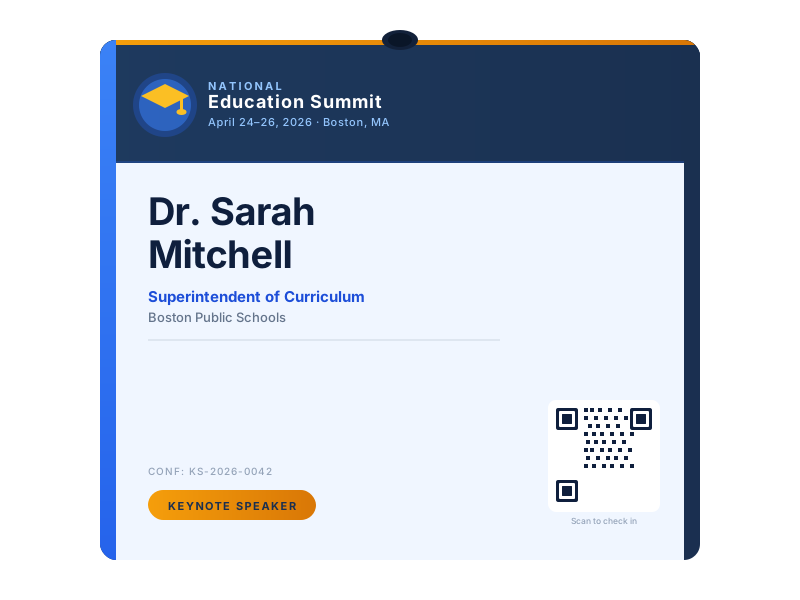
The following example shows a complete badge for a multi-day education conference. It demonstrates the accent bar, event header, attendee name hierarchy, ticket tier pill, and QR code — all configurable in the badge designer.
Designing a Badge Template
- Open your event and click Badges in the event navigation.
- In the Badge Size panel, choose the physical dimensions that match your badge holders: 4×3 in (most lanyards), 3×4 in (portrait lanyards), or 4×6 in (table badges). Print on Avery 5392 or any compatible label sheet.
- Configure Typography: choose which attendee fields to show (full name, company, job title, email, ticket tier, confirmation code), set font sizes and colors per field, and set the global text alignment.
- Toggle QR Code on or off. If on, choose the content encoded:
- Check-in code — same QR as the confirmation email, used by the scanner at the door.
- Networking vCard — scanning opens a contact card with name, company, and email for peer-to-peer networking.
- Set background and Accent bar colors for visual design. Optionally add a logo or background image via URL.
- Click Save Template. The template is now available to the check-in scanner and kiosk for on-demand printing.
Tip: Thermal printers (Bluetooth and USB) print black only — badge colors and background images are omitted from ZPL output. For full-color badges, use a standard inkjet or laser printer via the browser dialog. Keep your thermal template high-contrast (dark text, no colored backgrounds) for the best results.
Per-Tier Badge Templates
If your event has multiple ticket tiers (e.g., General, VIP, Speaker), you can design a separate badge for each tier. Tier badges let you differentiate by color, logo, or layout — making it visually obvious who holds which type of ticket.
- Go to Badges. If the event has ticket tiers, you will see a row of pill buttons at the top: Default (all tiers) and one button per tier.
- Click a tier button to switch to designing for that tier.
- Customize the badge and click Save Template. The tier name appears with a check mark (✓) to confirm it has a saved design.
- Tiers without a custom template fall back to the Default template automatically.
Bluetooth Thermal Printing (iOS & Android App)
The CompleteEvent mobile app supports direct Bluetooth printing to BLE-capable label printers. This is the recommended method for roving check-in staff at conferences where WiFi is unreliable or unavailable — the printer connection is entirely local between the device and printer.
How to set up Bluetooth printing
- Power on your Bluetooth label printer and put it in pairing mode (usually press and hold the feed button until the LED flashes blue).
- Open the Check-in page for your event in the app.
- Save a badge template first — the Badge Printing panel only appears when a template is saved.
- In the Badge Printing panel, tap Find Printers. The app scans for nearby Bluetooth devices for up to 8 seconds.
- Select your printer from the list. Printers closest to the device appear at the top.
- Optionally give the printer a nickname (e.g. "Check-in Desk 2") so staff know which printer is which at multi-desk events.
- Tap Test Print and compare the output to the reference image shown inView Reference. The name, QR code, and all fields should be clear and within the label boundaries.
- Enable Auto-print on check-in. Badges will now print automatically every time an attendee scans in.
Test print reference images
After running a test print, compare your physical output to the reference below for your badge size. Your colors and exact layout will vary based on your template settings — what you are verifying is that all fields printed, the QR code is present, and text is not cut off.
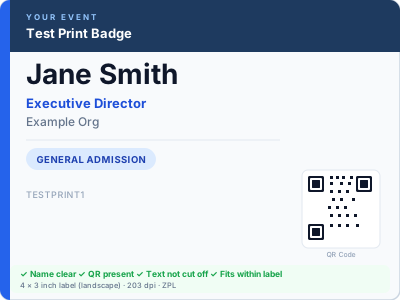
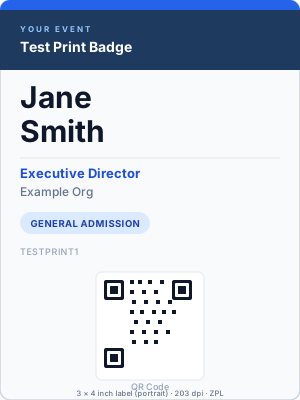
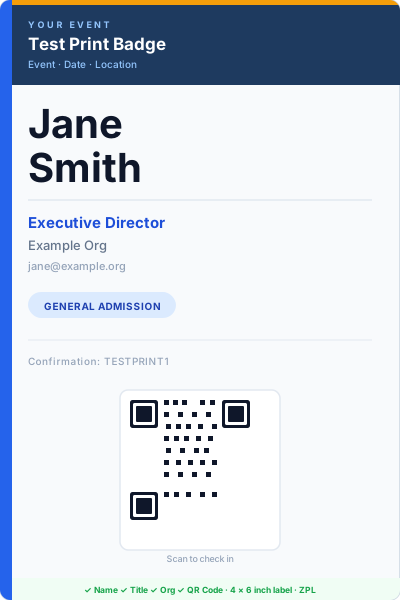
Check each test print for:
- Attendee name is large, clear, and not truncated
- QR code is present (if enabled in your template) and not distorted
- Text is dark black, not faded — if faded, increase the printer darkness setting
- All content fits within the label edges — no fields are cut off
- Label advances and cuts (or tears) cleanly after printing
Connection recovery
The app automatically reconnects to the last paired printer when:
- The app returns from the background (e.g. you switched to another app briefly)
- The Bluetooth connection drops mid-event
- A print error occurs
The printer status indicator in the Badge Printing panel shows the live state: Connected (green), Connecting (yellow), or Error — reconnecting (red). If reconnection repeatedly fails, tap Find Printers to re-pair manually.
Print queue
All print jobs are queued and sent one at a time. If an attendee scans in while a badge is still printing, their job is held and sent immediately after the current print finishes. No jobs are lost, even during a brief Bluetooth reconnect.
Offline printing
Badge template settings are stored locally on the device. If the device loses internet connectivity during an event, the offline check-in mode (Download Attendee List) continues to work and badges still print — no internet connection is required for the printer communication itself.
Recommended Bluetooth Printers
CompleteEvent uses ZPL (Zebra Programming Language) sent over a BLE connection. Any BLE-capable printer that accepts ZPL will work. The following models have been validated or are known to be compatible:
Strongly recommended
| Model | Price range | Notes |
|---|---|---|
| Zebra ZD421 | ~$350 | Best all-around. BLE + Classic BT + WiFi + USB. Prints 4" labels at 203 or 300 dpi. Fast, reliable, and the ZPL support is first-party. The standard choice for professional events. |
| Zebra ZD621 | ~$500 | High-volume version of the ZD421. Same BLE connectivity. Ideal for events with 500+ attendees checking in simultaneously at multiple desks. |
| Zebra ZQ520 (mobile) | ~$450 | Battery-powered, portable, rugged. Designed for roving staff. BLE + Classic BT. Clips to a belt or drops into a bag. Excellent for outdoor events, festivals, and venues where the printer needs to move with staff. |
| HPRT N41BT | ~$150 | Best value option. ZPL-compatible, Bluetooth + WiFi. Reliable BLE connection. Good choice for smaller events or organizations running check-in on a budget. Print quality is slightly below Zebra but acceptable for 1-day events. |
| Godex RT700i BT | ~$200 | ZPL-compatible, BLE, 4" print width. Solid mid-range option with good label media compatibility. Available in EU/APAC markets where HPRT is harder to source. |
Works but not recommended for high-volume events
| Model | Issue |
|---|---|
| Zebra ZD220 (Bluetooth) | Uses Classic Bluetooth only, not BLE. Works on Android via the SPP profile. Not supported on iOS — Apple restricts Classic Bluetooth to MFi- enrolled apps and specific protocol strings. Use a ZD421 for iOS compatibility. |
| Brother QL-820NWB | Uses Brother's proprietary RJ/raster format, not ZPL. Requires additional configuration and a custom label template in Brother's P-touch Editor software. Not plug-and-play with CompleteEvent's ZPL output. |
| Rollo Wireless | WiFi-only, no Bluetooth. Works for desktop printing via the WebUSB path if USB is available, but cannot be used for mobile Bluetooth printing. |
Not compatible — do not use
| Model / category | Why it won't work |
|---|---|
| Niimbot B21, D11, D110 | Proprietary protocol with no published SDK or ZPL support. The Niimbot app is the only way to print to these devices. Cannot be used with CompleteEvent. |
| Phomemo M02, M04, T02 | Proprietary protocol, receipt-format paper only (max 2–3" wide), no label feeding. Not suitable for conference badge sizes. |
| DYMO LabelWriter series | USB-only (no Bluetooth). Uses DYMO's proprietary protocol rather than ZPL. Not compatible with CompleteEvent's output. |
| Generic ESC/POS receipt printers | Receipt paper is 2–3" wide with continuous feed — wrong format for badge-sized labels. ESC/POS formatting does not support the structured layout that badge printing requires. |
| Any printer marketed under $80 | Nearly all sub-$80 Bluetooth thermal printers use proprietary protocols (Niimbot, Phomemo, and similar). If a listing does not explicitly state "ZPL compatible" or "Zebra EPL/ZPL emulation," assume it will not work. |
iOS BLE note
Apple restricts Classic Bluetooth (the older SPP serial profile) to accessories that are enrolled in Apple's MFi program with a specific protocol string. The CompleteEvent iOS app uses Bluetooth Low Energy (BLE) exclusively, which has no such restriction. This means you need a printer that supports BLE, not just Classic Bluetooth. All Zebra printers from the ZD421 generation onward include BLE. Older models (ZD220, GK420, LP2844) are Classic Bluetooth only and will not be discovered by the iOS app.
USB Thermal Printing (Desktop Kiosk)
For high-volume fixed check-in desks, CompleteEvent supports direct USB printing to Zebra label printers via WebUSB. When a thermal printer is connected, badges are sent as ZPL without any browser print dialog — the badge ejects immediately.
Requirements:
- Chrome or Edge browser on desktop (WebUSB is not supported in Safari or Firefox).
- A Zebra USB label printer (ZD-series, GK420, LP2844, and most Zebra USB printers).
- A saved badge template.
Setup:
- Plug your Zebra printer into the kiosk computer via USB and power it on.
- Open the kiosk in Chrome or Edge.
- Tap the Printer button in the top-left corner of the kiosk.
- Tap Connect Zebra Printer (USB) and select your printer from the browser prompt.
- The button turns green with the printer name — USB thermal printing is now active.
Printing All Badges (Pre-Event)
To print all badges before the event starts:
- Open the Badges page. Confirmed registrants appear in the preview grid.
- Use the Print All options bar to sort badges (by last name, first name, or registration order) and optionally filter to a specific ticket tier.
- Click Print All. A print job is sent to your browser with all badges laid out in a grid sized for letter paper. Bring the printed sheets to a paper cutter to separate.
Tip: Sort by last name before printing, then sort your physical badge pile alphabetically. Staff can find and hand out badges in seconds.
On-Demand Printing at Check-in
On-demand printing works with both the standard check-in scanner and the kiosk. When a badge template is saved and auto-print is enabled, a badge prints automatically the moment each attendee checks in.
To enable auto-print on the standard scanner:
- Save a badge template from the Badges page.
- Go to Check-in. A Badge Printing panel appears below the scanner.
- Connect a printer (Bluetooth on mobile, or USB on desktop).
- Toggle Auto-print on check-in.
To enable auto-print on the kiosk:
- Save a badge template.
- Go to Kiosk Settings → Branding and enable Auto-print badge on check-in.
- Connect a printer using the Printer button in the kiosk top-left.
When auto-print is off, a Print Badge button appears on the check-in success card. Staff can print manually for any individual attendee. Already-checked-in attendees show a Reprint Badge button.
Printer Limitations Summary
| Feature | iOS App (BLE) | Android App (BLE) | Desktop Chrome/Edge (USB) |
|---|---|---|---|
| Instant thermal printing | ✓ BLE printers | ✓ BLE printers | ✓ WebUSB (Zebra) |
| Works without venue WiFi | ✓ | ✓ | ✓ (USB cable) |
| Color badge printing | ✗ (thermal = B&W) | ✗ (thermal = B&W) | ✗ via USB; ✓ via browser dialog to inkjet |
| Classic Bluetooth printers (ZD220) | ✗ (BLE only on iOS) | ✓ | n/a (USB) |
| Auto-reconnect after drop | ✓ | ✓ | Manual reconnect required |
| Print queue (rapid scans) | ✓ | ✓ | ✓ |
| Offline badge printing | ✓ (template cached) | ✓ (template cached) | ✓ (template in browser) |
Print Tracking
Every time a badge is printed — whether at check-in, from the scanner, or via Bluetooth — it is logged in the print history. On the check-in scanner, the result card shows Badge printed N× so staff know if an attendee has already received a badge. This helps avoid duplicate printing and provides an audit trail.
Need more help?
Contact us at support@completeevent.app and we'll get back to you within one business day.
← Back to Help Center